The Video Delay operator delays the streamed video to achieve perfect synchronization with audio or other sources.
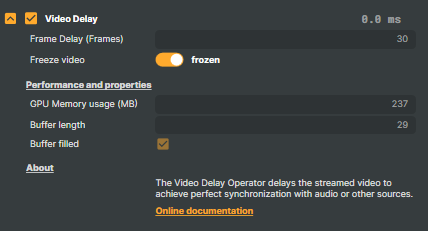
This operator is useful when you need to compensate for timing differences between video and audio signals, or when aligning video with external sources that have processing delays. The operator buffers incoming video frames and outputs them after the specified delay, ensuring precise synchronization in your composition.
Quick Start Guide
- Add the operator to your layer
- Set the Frame Delay to the number of frames you want to delay the video
- Monitor GPU Memory usage to ensure you have sufficient GPU memory for your delay settings
- Enable Freeze video if you need to pause the video on the current frame
Basic Settings
| Setting | Default | Description |
|---|---|---|
| Frame Delay (Frames) | 0 | The number of frames to delay the video output. Higher values create longer delays. Range: 0 - 250 frames. |
| Freeze video | Disabled | When enabled, freezes the video output on the current frame. The toggle displays "frozen" when active. While frozen, the Frame Delay setting becomes locked and cannot be changed. |
Note: When Freeze video is enabled, the Frame Delay (Frames) setting is automatically locked until you disable the freeze.
Performance and properties
| Setting | Default | Description |
|---|---|---|
| GPU Memory usage (MB) | 0 | Read-only. Displays the current GPU memory consumption of the delay buffer in megabytes. This value is calculated based on the frame delay, video width, and video height. Higher delays and larger resolutions require more GPU memory. |
| Buffer length | 0 | [Debug property] Read-only. Displays the current number of frames stored in the delay buffer. This value increases as frames are added until it reaches the Frame Delay value. Only visible when debug properties are enabled in Settings. |
| Buffer filled | Disabled | [Debug property] Read-only. Indicates whether the delay buffer has been completely filled with frames. When enabled (checked), the buffer contains enough frames to output properly delayed video. Only visible when debug properties are enabled in Settings. |
Technical note: GPU memory usage is calculated as:
(Frame Delay × Video Width × Video Height × 4) / 1024 / 1024MB. For example, delaying 30 frames of 1920×1080 video uses approximately 237 MB of GPU memory.
About
| Setting | Description |
|---|---|
| Description | Displays information about the Video Delay operator: "The Video Delay Operator delays the streamed video to achieve perfect synchronization with audio or other sources." |
| Online documentation | Link to the online documentation for the Video Delay operator. |
How It Works
The Video Delay operator maintains an internal buffer of video frames. When you set a frame delay:
- Incoming frames are copied to GPU memory and added to a queue
- The queue fills until it contains the specified number of delayed frames
- Once filled, the oldest frame in the queue is output while the newest frame is added
- The result is video output that is delayed by the exact number of frames specified
During the initial buffering period (before the queue is filled), the current input frame is passed through until enough frames have been buffered.
Performance Considerations
- GPU Memory: Each frame in the delay buffer consumes GPU memory. The total usage depends on:
- Frame delay setting (more frames = more memory)
- Video resolution (higher resolution = more memory per frame)
- Maximum Delay: The operator supports delays up to 250 frames, which at 60 FPS equals approximately 4.17 seconds of delay.
Memory Usage Examples:
| Resolution | 30 Frame Delay | 100 Frame Delay | 250 Frame Delay |
|---|---|---|---|
| 1280×720 | ~106 MB | ~352 MB | ~879 MB |
| 1920×1080 | ~237 MB | ~791 MB | ~1978 MB |
| 3840×2160 | ~949 MB | ~3164 MB | ~7910 MB |
Best Practices
Start with small delays: Begin with a small frame delay and increase gradually to find the optimal synchronization point.
Monitor GPU memory: Keep an eye on the GPU Memory usage value, especially when working with high resolutions or long delays.
Use Freeze sparingly: The Freeze video feature is useful for holding a frame, but remember that the Frame Delay setting will be locked while active.
Calculate your delay: If you know the time offset needed in milliseconds, calculate the frame delay using:
Frame Delay = (Delay in ms × Frame Rate) / 1000
Limitations
- Video only: This operator delays the video stream only. Embedded audio in the source is not delayed and will pass through in real-time. This means if your source has synchronized audio and video, applying a video delay will cause them to become out of sync.
- GPU memory dependent: Maximum practical delay is limited by available GPU memory.
- Locked during freeze: The Frame Delay setting cannot be adjusted while Freeze video is enabled.
- Initial buffering: There is a brief period when the delay first starts where the output may not yet be delayed while the buffer fills.