The GPU and Rendering Options feature in Composer provides configuration settings for optimizing GPU performance, video rendering, and system resource management. These settings allow you to fine-tune how Composer utilizes your hardware for optimal performance during content composition and playback.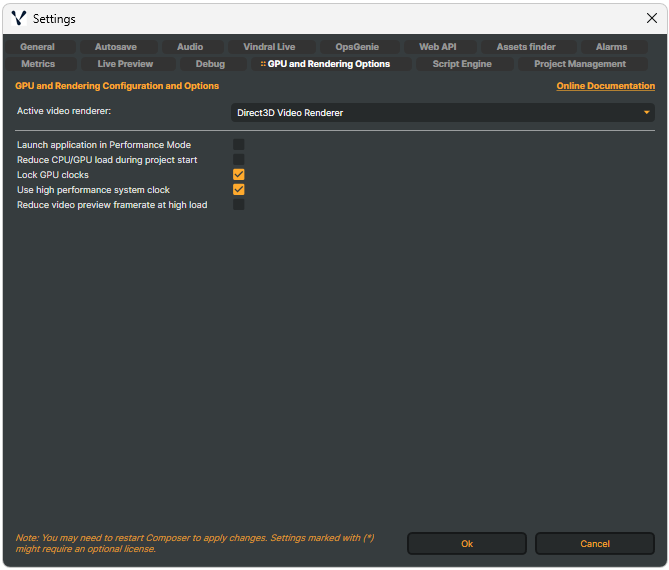
Video Renderer
| Setting | Description |
|---|---|
| Active video renderer | Selects the video renderer used for preview output. The available options depend on the video renderers installed and configured on your system. |
Performance Settings
These settings control how Composer manages system resources and performance optimization.
| Setting | Description |
|---|---|
| Launch application in Performance Mode | When enabled, Composer will start with a reduced user interface, allowing for higher overall performance. This mode is ideal for production environments where maximum rendering performance is prioritized over UI accessibility.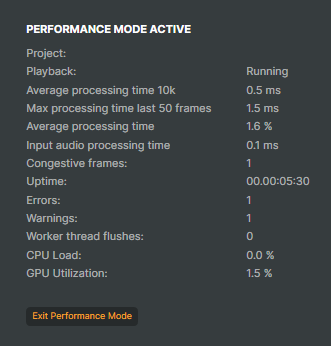 |
| Reduce CPU/GPU load during project start | When enabled, project inputs will be started at a slightly lower phase, reducing CPU and GPU load during the initial project startup. This helps prevent system overload when loading complex projects with many inputs. |
| Lock GPU clocks | When enabled, GPU clocks (both memory and graphics) will be locked to the maximum frequency. This can improve overall rendering performance by preventing GPU frequency scaling, but will increase power consumption. Requires NVIDIA GPU with SMI support. |
| Use high performance system clock | Enables a high-resolution system clock for improved timing accuracy. This can improve overall application performance and timing precision, but will increase power consumption. |
| Reduce video preview framerate at high load | When enabled, the video preview frame rate will be automatically reduced by half when the system load exceeds 80%. This helps maintain stable output performance by sacrificing preview quality during high-load situations. |
Quick Start
- Open Settings from the Composer menu
- Navigate to the GPU and Rendering Options tab
- Select your preferred Active video renderer
- Enable desired performance optimizations based on your use case
- Click OK to save settings
- Restart Composer for changes to take effect
Use Cases
- Production Streaming: Enable Performance Mode, Lock GPU clocks, and Use high performance system clock for maximum stability
- Development/Editing: Disable Performance Mode to retain full UI access while working on projects
- Complex Projects: Enable Reduce CPU/GPU load during project start to prevent startup bottlenecks
- Resource-Constrained Systems: Enable Reduce video preview framerate at high load to maintain output quality
- Power-Conscious Setups: Disable Lock GPU clocks and Use high performance system clock to reduce power consumption