The Web Page (Chromium, cross-platform) input allows you to fetch and render content from external web pages using the DotNetBrowser engine. The core rendering engine is Chromium, providing high-quality, standards-compliant web content rendering for your compositions.
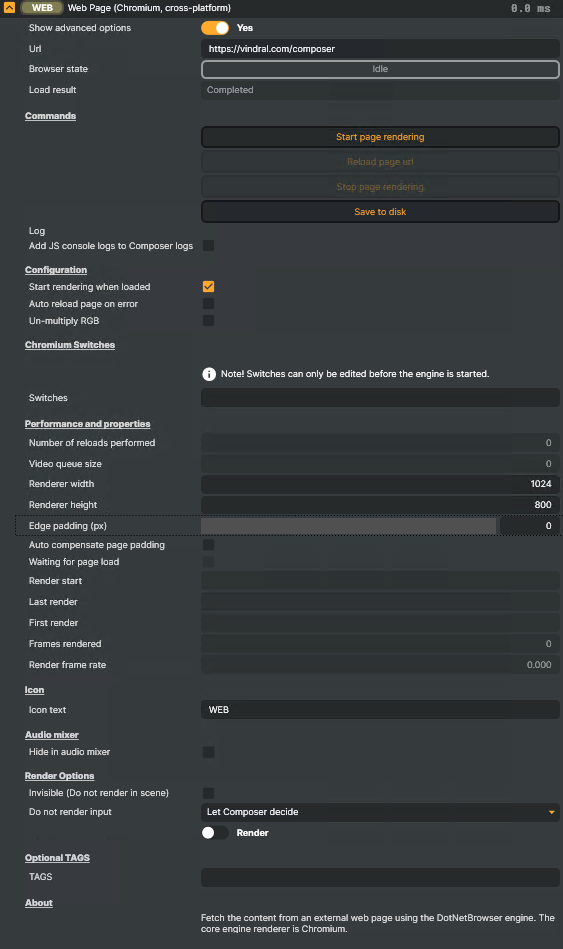
This input is ideal for displaying HTML5 graphics, web-based dashboards, real-time data feeds, interactive content, and any web-based application within your video production workflow. The browser renders off-screen and captures frames that can be composited with other video sources.
Composer offers three different web page rendering engines:
| Feature | Chromium (cross-platform) | Chromium (Windows) | Ultralight |
|---|---|---|---|
| Platform | Windows + Linux | Windows only | Windows + Linux |
| Browser Engine | Full Chromium | Full Chromium | Lightweight renderer |
| Audio Capture | ❌ | ✅ 48kHz stereo | ❌ |
| Scrollbar Control | ❌ | ✅ X/Y position | ❌ |
| Live URL Changes | ❌ | ✅ | ❌ |
| Chromium Switches | ✅ | ❌ | ❌ |
| Web Compatibility | All modern web | All modern web | Basic HTML/CSS/JS |
Choose Chromium (cross-platform) if: You need Linux support or Chromium configuration switches
Choose Chromium (Windows) if: You need audio capture or scrollbar control
Choose Ultralight if: You need low memory usage or simple web content
Quick Start Guide
- Add the input to your composition
- Enter a URL in the Url field (e.g.,
https://example.com) - Set resolution (optional): Adjust Renderer width and height if needed (default: 1024x800)
- Click "Start page rendering" to begin capturing the web page
- Wait for loading: Monitor the Browser state until it shows "Loaded"
- Add to scene: Add the input to a layer in your scene to display it
On Linux systems, the DISPLAY environment variable must be set before starting the application. The DISPLAY variable should be set to a valid X11 display, such as :99. Example: export DISPLAY=:99. For headless servers, you'll need to run Xvfb (X virtual framebuffer). Without this, the browser engine will fail to initialize.
Xvfb :99 -screen 0 1024x768x24 &export DISPLAY=:99
Tip: Enable "Start rendering when loaded" (enabled by default) to automatically start the browser when you load your composition.
Basic Settings
| Setting | Description |
|---|---|
| Show advanced options | Toggle to show or hide advanced configuration options. Options: No / Yes. Default: No. |
| Url | Enter the web page URL to render. Must be HTTP or HTTPS. Default: Empty. |
| Browser state | Read-only status display showing the current state of the browser engine. Options: Idle, Loading, Loaded, Waiting for sub services load finalizer, Error loading page. Default: Idle. |
| Load result | Read-only status display showing the result of the last page load attempt. Options: Completed, Failed, Stopped. Default: Completed. |
Important: The Url field is locked while the browser is loading or has loaded a page. You must stop the rendering before changing the URL.
URL Examples:
https://example.comhttp://localhost:3000/dashboardhttps://your-domain.com/custom-page.html
Commands
| Command | Description |
|---|---|
| Start page rendering | Initiates the rendering of the web page specified in the URL field. When clicked, the browser engine starts, navigates to the specified URL, and begins capturing frames. Enabled when the browser is idle and a valid URL is provided. |
| Reload page url | Reloads the current web page from scratch. Useful for refreshing content or recovering from display issues without stopping and restarting the entire browser engine. Enabled only when a page is successfully loaded. |
| Stop page rendering | Stops the current rendering session and returns the browser to idle state. This releases browser resources and allows you to change settings like URL, width, and height. Enabled when the browser is loading or has loaded a page. |
| Save to disk | Saves the current rendered frame to disk for debugging and testing purposes. Creates three PNG files in C:\temp\: dotnetbrowser-opaque.png (opaque alpha), dotnetbrowser-premul.png (premultiplied alpha), and dotnetbrowser-unpremul.png (unpremultiplied alpha). Always enabled. |
Log
The component log displays up to 6 recent log entries, providing real-time information about the browser's operation.
| Setting | Default | Description |
|---|---|---|
| Log | - | Read-only display showing recent log messages from the browser engine and web page operations. |
| Add JS console logs to Composer logs | Disabled | [Debug] When enabled, JavaScript console messages from the web page (console.log, console.error, etc.) are added to the Composer logs for debugging purposes. Requires debug properties to be enabled in Settings. |
The "Add JS console logs to Composer logs" option is a debug property. To view it, enable debug properties in Settings: Menu → Settings → Debug → Show Debug Properties.
Typical log messages include:
- Navigation status (e.g., "Navigating to https://example.com...")
- Page load completion or failure notifications
- Chromium switches being applied
- Error messages if loading fails
- Stop/start operation confirmations
Note: The log automatically scrolls to show the most recent entries and color-codes messages by severity (info, warning, error). JavaScript console output from your web page also appears here when "Add JS console logs to Composer logs" is enabled.
Configuration
| Setting | Default | Description |
|---|---|---|
| Start rendering when loaded | Enabled | When enabled, the input automatically starts rendering when the composition is loaded or when the input is added to a project. This is useful for automated workflows where you want the web page to start immediately without manual intervention. |
| Auto reload page on error | Disabled | [Advanced] Automatically attempts to reload the page if a loading error occurs (e.g., network timeout, server error, or failed navigation). This can help maintain continuous operation in production environments, though it may create an infinite reload loop if the underlying issue persists. |
| Un-multiply RGB | Disabled | [Advanced] Un-multiply the RGB channels with the alpha channel, converting from premultiplied alpha to straight alpha. Most web content uses premultiplied alpha, but some compositing scenarios require straight alpha. Enable this if you see incorrect transparency or color bleeding around edges when compositing the web content. |
Use case: Enable "Auto reload page on error" for resilient production workflows where temporary network issues might occur.
Technical note: Chromium renders with premultiplied alpha by default. Only enable "Un-multiply RGB" if your composition pipeline requires straight (non-premultiplied) alpha.
Chromium Switches
⚠️ Important: Switches can only be edited before the engine is started. Once you click "Start page rendering" for the first time, the engine is created and switches become locked for the duration of your application session. You must restart the application to change switches.
| Setting | Default | Description |
|---|---|---|
| Switches | Empty (uses default --do-not-de-elevate) |
[Advanced] Space-separated list of Chromium command-line options to customize browser behavior. Each switch must start with --. Invalid formats will prevent the browser from starting. |
Reference: For a complete list of available switches, visit: https://peter.sh/experiments/chromium-command-line-switches/
Common examples:
--disable-gpu- Disable GPU acceleration (useful for troubleshooting graphics issues)--disable-web-security- Disable CORS restrictions (use with caution, only for trusted content)--autoplay-policy=no-user-gesture-required- Allow autoplay of media without user interaction--no-sandbox- Disable Chrome's sandbox (required in some Docker/restricted environments, use with caution)--disable-dev-shm-usage- Avoid shared memory issues (useful in Docker/limited memory environments)--disable-software-rasterizer- Disable software rendering fallback
Example combination:
--disable-gpu --autoplay-policy=no-user-gesture-required
Performance tips:
- Disabling GPU features can help with compatibility but may reduce performance
- Test switches carefully as some combinations may cause instability
- Not all switches are guaranteed to work or have visible effects
Performance and properties
| Setting | Default | Description |
|---|---|---|
| Renderer width | 1024 | The width of the browser rendering viewport in pixels. This determines the resolution at which the web page is rendered. This property is locked while the browser is loading or loaded. You must stop rendering to change this value. Range: 32 - 4096 pixels. |
| Renderer height | 800 | The height of the browser rendering viewport in pixels. This determines the resolution at which the web page is rendered. This property is locked while the browser is loading or loaded. You must stop rendering to change this value. Range: 32 - 4096 pixels. |
| Edge padding (px) | 0 | An opt-in overscan/crop support for DotNetBrowser offscreen capture, intended to mask Linux edge artifacts when capturing transparent pages. Range: 0 - 32 pixels. |
| Auto compensate page padding | False | An optional in-page CSS injection to compensate for the visual shift for edge padding > 0. |
Performance impact: Higher resolutions provide better quality but require more processing power and memory.
Resolution tips:
- Match your output resolution when possible for optimal quality
- Use lower resolutions for better performance on complex web pages
- Common presets: 1920x1080 (Full HD), 1280x720 (HD), 1024x768 (4:3)
- The web page will scale to fit the specified dimensions
Debug Properties
These read-only properties provide diagnostic information about the browser's operation and performance.
Note: To view debug properties, you must enable them in Settings: Menu → Settings → Debug → Show Debug Properties.
| Property | Description |
|---|---|
| Number of reloads performed | [Debug] Counter showing how many times the page has been reloaded (either manually or automatically via "Auto reload page on error"). |
| Video queue size | [Debug] The current number of frames in the video queue waiting to be rendered. The system automatically drops frames when the queue exceeds 2 frames to prevent lag. |
| Waiting for page load | [Debug] Boolean indicator showing if the browser is currently waiting for the page to finish loading. |
| Render start | [Debug] The date and time when the rendering session started. |
| Last render | [Debug] The date and time of the most recent frame rendered. |
| First render | [Debug] The date and time when the first frame was rendered after starting the browser. |
| Frames rendered | [Debug] Total count of frames rendered since the browser started. |
| Render frame rate | [Debug] The current rendering frame rate in frames per second (FPS). Shows how fast the browser is producing frames. |
Icon
| Setting | Default | Description |
|---|---|---|
| Icon text | WEB | [Advanced] Custom text displayed on the input's icon in the inputs list and other UI elements. |
Audio mixer
| Setting | Default | Description |
|---|---|---|
| Hide in audio mixer | Disabled | [Advanced] When enabled, this input is hidden and removed from the Audio Mixer view in the Composer GUI without disabling its audio. |
Render Options
| Setting | Default | Description |
|---|---|---|
| Invisible (Do not render in scene) | Disabled | [Advanced] When enabled, this input will not be rendered in any layer, in any scene. The input continues to process in the background but produces no visible output. |
| Do not render input | Let Composer decide | [Advanced] Controls how the rendering behavior is managed. Let Composer decide: Composer automatically decides whether the input should be rendered based on the active scene and if Render Tuning is enabled. This is the recommended setting for most users as it optimizes performance automatically. Manual Configuration: Allows you to manually control rendering behavior using the "Render / Do not render" toggle below. Choose this when you need precise control over when the input processes frames. |
| Render / Do not render | Render | [Advanced] When set to "Do not render", this disables the internal render method of the input. The browser will not capture new frames, which can significantly reduce CPU/GPU load. Only visible when "Manual Configuration" is selected. |
Use case: Useful when you want to keep an input active (e.g., for audio only) but don't need its video output.
Important difference from "Invisible":
- "Do not render input" = stops frame capture entirely (better performance)
- "Invisible" = continues capturing frames but doesn't display them (uses more resources)
Use case: Enable "Do not render" when an input is temporarily not needed to save system resources.
Optional TAGS
| Setting | Default | Description |
|---|---|---|
| TAGS | Empty | Tag the input with keywords. Tags can be used with Smart Search to search and filter your inputs. Useful for organizing and classifying your content. |
Performance Considerations
The Web Page input is GPU-accelerated and designed for real-time performance. However, performance can be affected by several factors:
- Resolution: Higher resolutions (especially 4K) require proportionally more processing power and memory
- Web page complexity: Heavy JavaScript, CSS animations, WebGL content, and continuous updates consume significant CPU/GPU resources
- Browser rendering: Complex DOM structures, large images, and multiple CSS effects impact browser performance
- Frame rate: The browser typically renders at 60 FPS, which may be higher than your project framerate
- Multiple instances: Each Web Page input requires substantial memory; multiple inputs multiply resource requirements
Recommendations for optimal performance:
- Match the renderer resolution to your output resolution to avoid unnecessary scaling
- Use lower resolutions (e.g., 1280x720 instead of 1920x1080) for complex web pages
- Optimize your web content: minimize JavaScript, optimize images, reduce animations
- Use "Do not render input" when the input isn't visible to save CPU/GPU resources
- Stop unused Web Page inputs rather than leaving them running in the background
- Limit the number of simultaneous Web Page inputs based on your system capabilities
- For 4K content, ensure your system has adequate GPU memory and processing power
- Consider using static images or pre-rendered video if real-time web rendering isn't required
Note: The browser maintains a frame queue and automatically drops excess frames when rendering faster than your project framerate. This is normal behavior and helps maintain smooth output.
Technical Details
Browser Engine
- Engine: DotNetBrowser with Chromium rendering core
- Rendering mode: Off-screen rendering (OSR) for optimal performance
- Transparency: Supports transparent backgrounds when the web page CSS specifies it
- Alpha channel: Uses premultiplied alpha by default (can be converted to straight alpha via "Un-multiply RGB")
Supported Protocols
- HTTP
- HTTPS
- Local file URLs (file://) may have restrictions depending on security settings
Platform Support
- Windows: Fully supported
- Linux: Supported with requirements
- Requires the DISPLAY environment variable to be set
- Example:
export DISPLAY=:99 - Commonly used with Xvfb for headless operation
- Cross-platform: Same codebase works on both platforms
Performance Characteristics
- Resolution: Configurable viewport from 32x32 to 4096x4096 pixels
- Frame rate: Captures frames as the browser renders them (typically 60 FPS)
- Video queue: Maintains an internal queue to smooth frame delivery (drops frames if queue > 2 to prevent lag)
- Memory: Allocates 5 render target buffers for efficient frame rotation
- Processing: Zero-copy GPU frame transfer when possible
JavaScript Console
- JavaScript console messages from the web page are automatically logged
- Console errors, warnings, and info messages appear in the application log
- Useful for debugging web page issues
Default Chromium Switches
The browser automatically applies --do-not-de-elevate by default. Your custom switches are added to this base configuration.
Best Practices
Performance and Configuration
- Match your output resolution: Set Renderer width/height to match your final output resolution to avoid unnecessary scaling
- Optimize web content: Keep HTML/CSS/JavaScript as simple as possible; complex animations and effects impact performance
- Stop when not needed: Use "Stop page rendering" when the input isn't actively being used to free up resources
- Enable "Auto reload on error": This helps recover from temporary network issues automatically in production
Web Page Development
- Set explicit dimensions: Design your HTML with fixed dimensions that match your renderer size for predictable layouts
- Use transparent backgrounds: Set
background: transparenton html and body elements if you need transparency - Test with "Save to disk": Use this feature to verify rendering and transparency are working correctly
- Avoid user interactions: The browser is non-interactive; design for automated display rather than user clicks
- Self-contained pages: Keep all resources (CSS, JS, images) either inline or on the same server to avoid CORS issues
Security
- Trust your sources: Only load content from trusted URLs
- Avoid
--disable-web-security: Only use this switch for controlled, trusted content - Test URLs thoroughly: Always test your web pages in a regular browser first to ensure they work correctly
Limitations and Known Issues
Input and Browser Limitations
- Video only: This input captures video frames only. Web page audio is not captured through this input.
- No user interaction: The browser is non-interactive. Mouse clicks, keyboard input, and other user interactions are not supported.
- No scrolling control: Automatic scrolling or scroll position control is not available through the UI.
- Static viewport: The viewport size must be set before starting and cannot be changed while running.
- Chromium switches: Once the browser engine starts, switches cannot be changed without restarting the application.
- Some websites may block embedding: Websites with strict Content Security Policies or X-Frame-Options may refuse to load.
Platform and Performance
- Linux DISPLAY requirement: Linux systems must have a DISPLAY environment variable set, typically requiring Xvfb for headless operation.
- GPU acceleration: GPU acceleration may not work correctly on all systems; use
--disable-gpuswitch if you experience issues. - High resolution impact: Very high resolutions (e.g., 4K) may impact system performance significantly.
- Memory usage: Each browser instance requires substantial memory; multiple Web Page inputs in one composition will multiply memory requirements.